View All Data Connectors
ProcessMaker Platform displays all Data Connectors in one location. This makes it easy to manage Data Connectors.
Permissions
Your user account or group membership must have the "Data Connectors: View Data Connectors" permission to view the list of Data Connectors unless your user account has the Make this user a Super Admin setting selected.
See the Data Connectors permissions or ask your Administrator for assistance.
Follow these steps to view all Data Connectors in your organization:
Log on to ProcessMaker Platform.
Click the Designer option from the top menu. The Designer Welcome Screen displays.
Do one of the following:
From the Assets pane in the Designer Welcome Screen, mouse-hover over the Data Connectors icon, and then select View All Data Connectors.
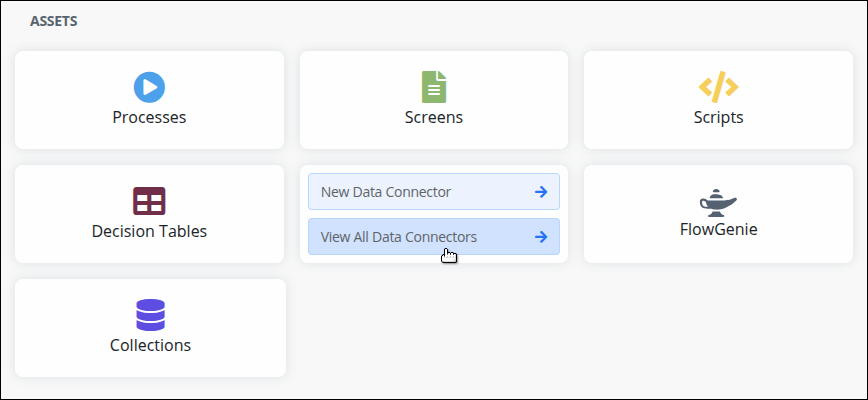
Click the Data Connectors icon
 from the left sidebar.
The Data Connectors tab displays all Data Connectors in the Data Connectors page.
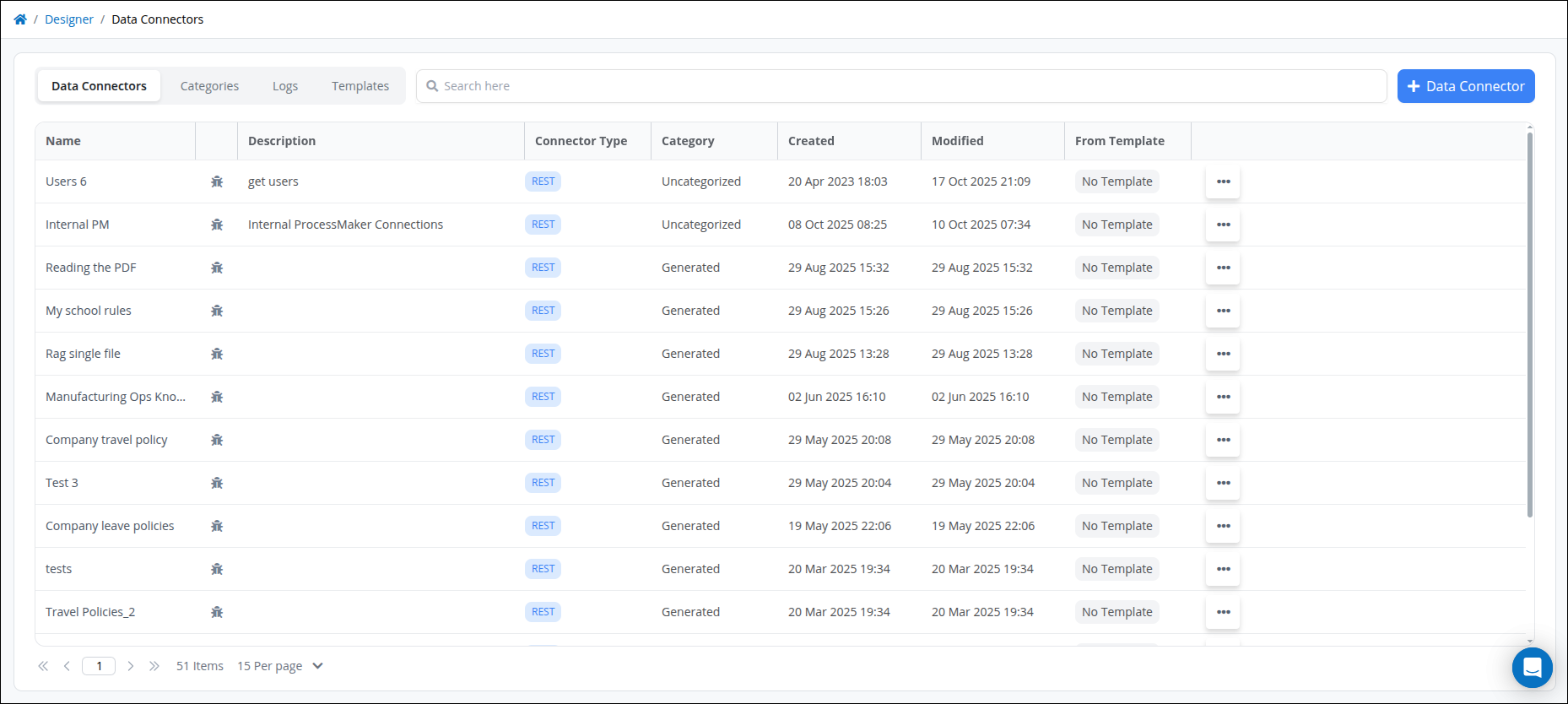
Columns in the Data Connectors list
The Data Connectors tab displays the following information in tabular format about Data Connectors:
Name: The Name column displays the name of the Data Connector. If a Collection is created, the automatically created Data Connector that connects to that Collection has the same name as that Collection.
Debug: Indicates whether debug mode for a Data Connector is enabled or disabled. The
 icon indicates debug mode is enabled. Click the
  icon to enable debug mode for the selected Data Connector. Debug mode is disabled by default.
Description: The Description column displays the description of the Data Connector. See Edit Details for a Data Connector for more information.
Connector Type: The Connector Type column displays with which authentication method the Data Connector uses to connect to its data source. It can be REST or SOAP.
Category: The Category column displays to which Data Connector Category the Data Connector is assigned. If a Collection is created, the automatically created Data Connector that connects to that Collection is assigned to the Generated Category by default.
Created: The Created column displays the date and time the Data Connector was created. The time zone setting to display the time is according to the ProcessMaker Platform instance unless your user profile's Time zone setting is specified.
Modified: The Modified column displays the date and time the Data Connector was last modified. The time zone setting to display the time is according to the ProcessMaker Platform instance unless your user profile's Time zone setting is specified.
From Template: The From Template column indicates whether the Data Connector was created from a template. Displays No Template or the name of the template if the connector was created using a template.
Click the
 menu, to do the following:
Click the
 option. See Edit the Data Connector.
Click the
 option to save as template the Data Connector.
Click the
 option. See Add a Data Connector to a Project.
Click the
 option. See Add Assets to a Bundle.
Click the
 option to delete the Data Connector.
When a Data Connector is deleted, existing ProcessMaker Platform assets that already use the connector are not affected; however, the deleted Data Connector is no longer available to be referenced or selected in other ProcessMaker Platform assets. Deleting a Data Connector from the Data Connectors page is permanent and cannot be undone.
No Data Connectors?
If no Connectors exist, the following message displays: No Data Available.
Display Information the Way You Want It
Control how tabular information displays, including how to sort columns or how many items display per page.
Debug a Data Connector
Optionally debug a Data Connector if it does not authenticate properly or to test it.
Click the icon to toggle debug mode for a selected Data Connector. The icon changes to to indicate debug mode is enabled.
Search for a Data Connector
Permission
Your user account or group membership must have the "Data Connectors: View Data Connectors" permission to search for Data Connectors unless your user account has the Make this user a Super Admin setting selected.
See the Data Connectors permissions or ask your Administrator for assistance.
Follow these steps to create a new Data Connector:
View your Data Connectors. The Data Connectors tab displays.
Enter in the Search setting the text to filter Data Connectors using any of the following criteria:
Name: Filter by the Data Connector name that displays in the Name column.
Category: Filter by the Data Connector Category name that displays in the Category column.
Description: Filter by the Data Connector description that displays in the Description column.
As you enter text into the Search setting, Data Connectors display that match your entered text.
If there are no search results, the following message displays: No Data Available.
Add a Data Connector to a Project
Adding a Data Connector to a Project adds that Process as an asset to that Project. Any Project member may then use that asset toward the goals of that Project.
Permissions
Your user account or group membership must have one of the following:
the View Data Connectors permission in the Data Connectors category of permissions
a member of any Project
your user account has the Make this user a Super Admin setting selected
Ask your Administrator for assistance if necessary.
Follow these steps to add a Data Connector to a Project:
View your Data Connectors. The Data Connectors tab displays.
Click the
menu, and then select the Add to Project option. The Add to a Project screen displays.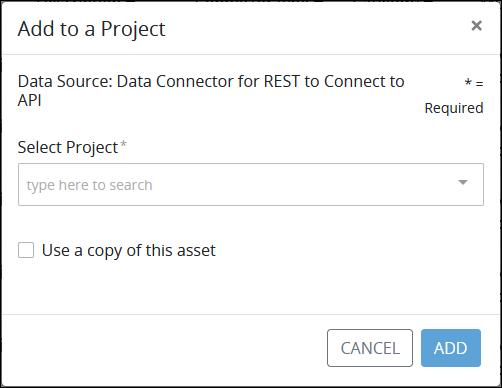
Add a Data Connector to a Project as an asset
From the Select Project drop-down, select to which Project(s) this Data Connector becomes an asset. To remove a Project that is currently selected, click the
 icon for that selection or press
 Enterwhen the drop-down is visible.Optionally, select the Use a copy of this asset option to use a copy of this Data Connector as the Project asset instead of the original. When selecting this option, any revisions made to the original Data Connector do not affect yours in your Project(s), and vice versa. Consider this option a best practice to use, especially if you intend to make changes from the original Data Connector that may not be an asset in any Project.
Click Add. The Data Connector is added as an asset to the selected Project(s).