The Smart Extract Validations settings allow administrators to manage the document extraction validations used by Smart Extract within ProcessMaker. These validations define how documents are analyzed and which data fields are extracted during process execution.
Process Designers reference these validations when configuring the Smart Extract connector in the Process Modeler. Each validation contains the extraction configuration used to identify structured data from documents and return it to the process instance for further processing.
How Smart Extract Validations Are Used
Smart Extract validations are used when configuring the Smart Extract connector in a process.
During the connector configuration, Process Designers select a Validation ID that determines:
Which document structure the extraction applies to
Which fields are detected in uploaded documents
How extraction results are returned to the process
When a document is processed:
The document is sent to Smart Extract for analysis.
The selected validation identifies the configured fields.
Extracted data and confidence scores are returned to ProcessMaker.
The process uses the extracted data to continue workflow execution
Enabling Smart Extract Validations
To enable Smart Extract validations in your environment, contact your Customer Support Manager or ProcessMaker Support. Enabling this feature may require additional reimbursement depending on your subscription or service agreement.
View Smart Extract Validations
ProcessMaker Platform provides a centralized location to view all Smart Extract validations. Any Smart Extract validation created by an Administrator can be used across any process model, making Smart Extract management simple and efficient. Follow these steps to view all Snart Extract Validations in your organization:
Log on to ProcessMaker Platform.
From the top menu, click the Admin option to view the Users page.
From the left sidebar, click the Smart Extract icon
 to see a list of available Smart Extract validations.
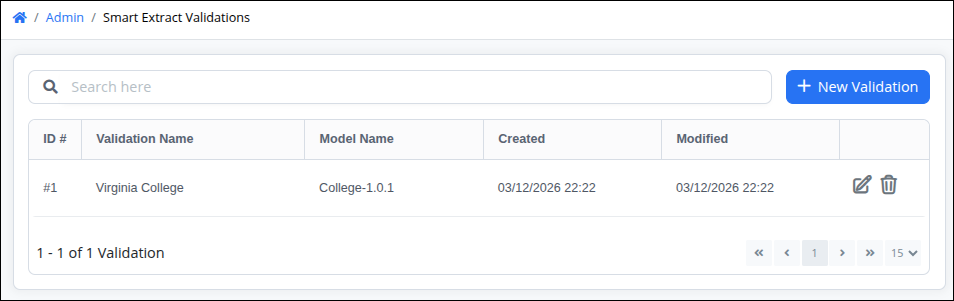
The Smart Extract Validations page displays the following information in tabular format:
The ID # column shows a unique identifier used by the Smart Extract connector to reference the extraction validation.
The Validation Name column shows a descriptive name used to identify the validation within the platform.
The Model Name column shows the name of the model or the document type it processes.
The Created column displays the date and time the validation was created. Time is displayed based on ProcessMaker Platform instance's time zone setting or the user profile's setting.
The Modified column displays the date and time the validation was last modified. Time is displayed based on ProcessMaker Platform instance's time zone setting or the user profile's setting.
Click the +New Validation to create a new Validation.
Click the Edit icon
 to modify validation settings in the same way as when create a new validation.
Click the Delete icon
 to remove a Smart Extract validation. The Caution screen displays to confirm the deletion of the Smart Extract validation.
⚠️ Deleting a Smart Extract Validation
When a Smart Extract validation is deleted, the following behaviors occur:
All Smart Extract connectors using the deleted Smart Extract validation will fail during case execution.
Process designers are not notified that the Smart Extract validation has been deleted.
🛑 Important: Deleting a Smart Extract validation from the Smart Extract page is permanent and cannot be undone.
➡️ Best Practice: Always verify whether any active Smart Extract connectors depend on a Smart Extract validation before deleting it to prevent failures during case running.
Create a Validation
Follow these steps to create a new Validation:
View your Smart Extract validations. The Smart Extract Validations page displays.
Click the +New Validation button. The Validation Configuration screen displays.
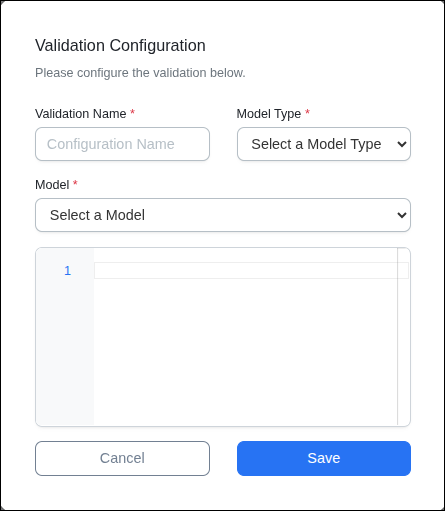
In the validation configuration form, enter the required validation information:
Enter Validation Name
Select a Model Type
Select a Model
Edit the JSON validation structure
Configure the extraction settings required for the document type the validation will process.
Review the validation configuration.
Click Save.
After the validation is saved, it becomes available for selection when configuring a Smart Extract connector in the Process Modeler.