---
title: "Screen Control Best Practices"
slug: "form-type-screens-best-practices"
updated: 2025-08-26T21:44:29Z
published: 2025-08-26T21:44:29Z
canonical: "docs.processmaker.com/form-type-screens-best-practices"
---
> ## Documentation Index
> Fetch the complete documentation index at: https://docs.processmaker.com/llms.txt
> Use this file to discover all available pages before exploring further.
# Screen Control Best Practices
Follow basic control settings best practices so [Screen Controls](/v1/docs/screen-controls) are easy to navigate and read.
> [!NOTE]
> Use [Multicolumn / Table](/v1/docs/multicolumn-table-control) controls to organize the layout and width of other controls.
For each example, click the **Bad Practice** and **Good Practice** expandable sections to compare what to avoid and what to follow. Recommendations are grouped by controls to simplify navigation.
---
## All Controls
### Label Text
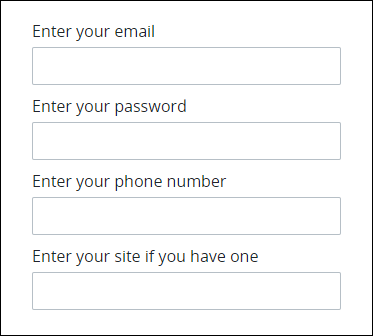
**Bad Practice**
Avoid text redundancy as shown in the example below.
**Good Practice**
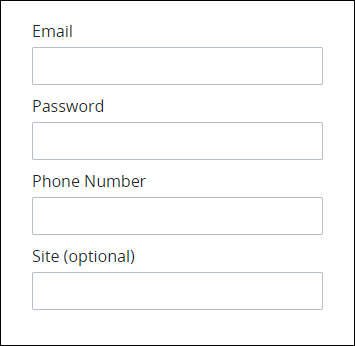
Be as concise as possible in control labels.
### Help Text
**Bad Practice**
By providing no user guidance for information to enter into the form, users become confused.
.png)
**Good Practice**
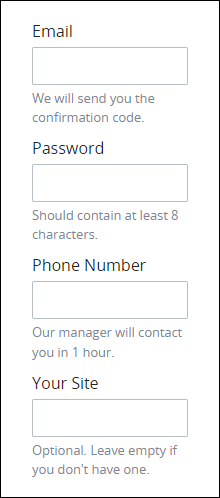
Use helper text to provide context how to interact with each control.
---
## Line Inputs
### Display Field Information
**Bad Practice**
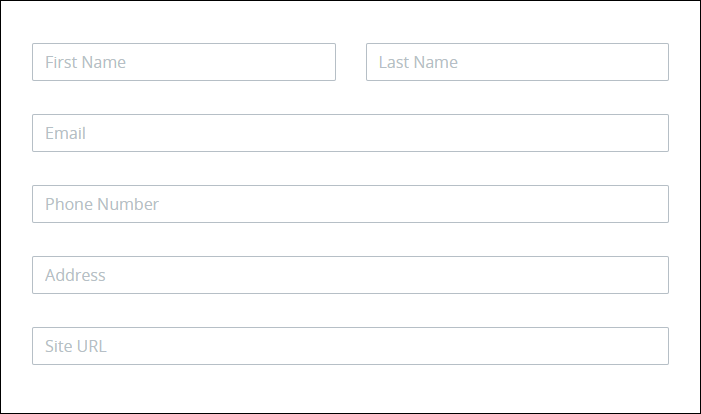
Avoid using [placeholders](/v1/docs/line-input-control#configuration-panel-settings) for [Line Input controls](/v1/docs/line-input-control). When users start typing in the controls, the placeholders disappear.
**Good Practice**
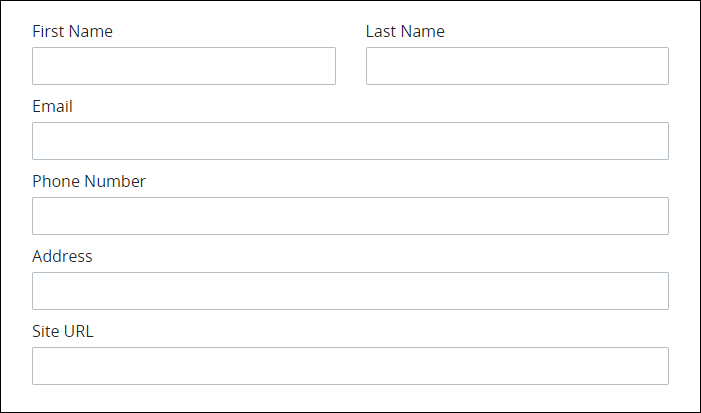
Use labels in controls to indicate their purpose, since they are always visible for users to see.
See the **Label** setting for the [Line Input control](/v1/docs/line-input-control) for more information.
### Organize Fields
**Bad Practice**
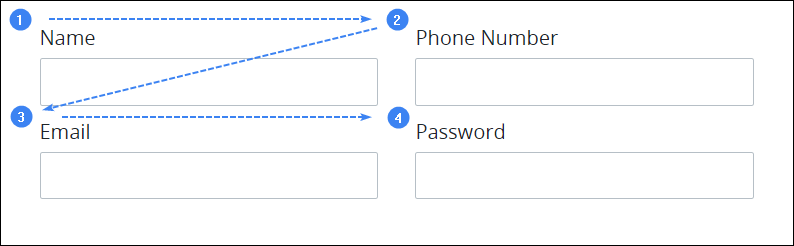
When a user navigates through a multi-column Screen, making the user follow a Z-pattern is more difficult for the user's eyes. Users might not even know where to start.
**Good Practice**
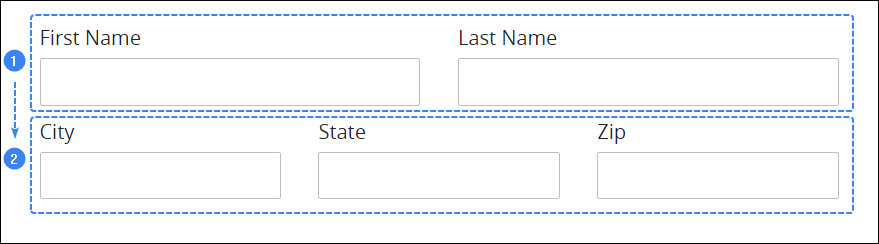
If the [Line Input](/v1/docs/line-input-control) controls associate with one another, place them in one horizontal line.
### Masked Patterns
**Bad Practice**
Unmasked Line Input controls allow users to introduce errors when entering commonly-used information.
**Good Practice**
Use masking patterns to pre-format commonly used information, thereby allowing users to enter information accurately. See the Custom Format String setting for the [Line Input](/v1/docs/line-input-control) control for more information. Click the image below to enlarge.
.gif)
---
## Select Lists
### Controls as Drop-Down Menus
**Bad Practice**
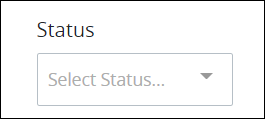
If there are fewer than four options, as a general guideline do not put them in a [Select List](/v1/docs/select-list-control) control as drop-down options. This design requires the user to click twice to commit an action: once to display the Select List control options, another select an option.
**Good Practice**
If there are fewer than four options, show the options immediately using [Submit Button](/control-descriptions/submit-button-control-settings-1) controls. This design requires one click to commit an action.

---
## Rich Texts
### Group Fields
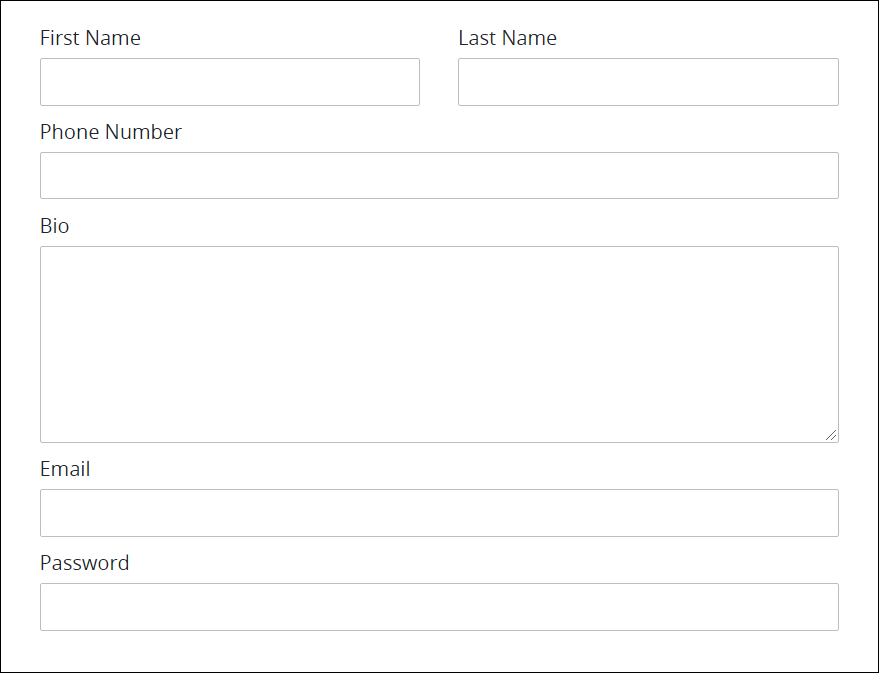
**Bad Practice**
If your form is large, do not use all [Line Input controls](/v1/docs/line-input-control) in one section.
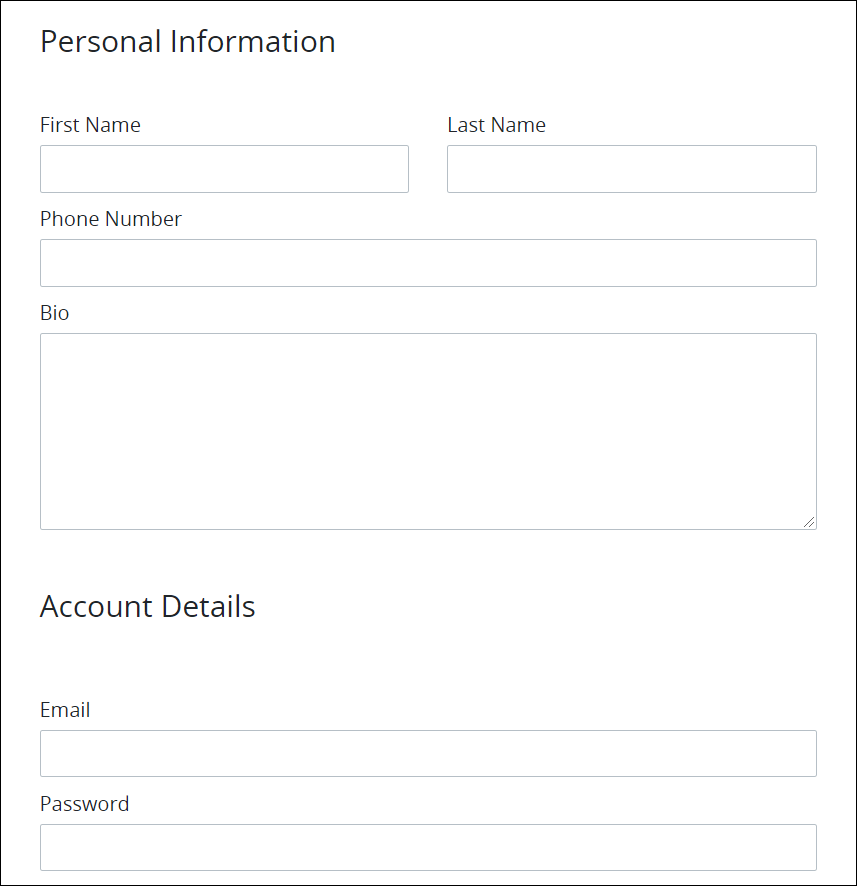
**Good Practice**
Use the [Rich Text](/v1/docs/rich-text-control) control to add headings that break the form into logically-related groups.
### Custom CSS
**Bad Practice**
- When designing [Email Screens](/v1/docs/screens-types#email-screens), avoid relying on general HTML tag selectors (e.g., `p { color: red; }`) in your CSS. Many email clients—like Gmail or Outlook—strip or override these styles for security and rendering consistency.
- Avoid general tag-based selectors (`body`, `div`, `p`, etc.) which are often ignored or overwritten.
**Good Practice**
- Use **inline CSS** on HTML elements (e.g., `<p style="color:blue;">`).
- Use **custom class selectors** and apply them directly to your elements.
```xml
Transfer Credit Evaluation
```
**Why this matters**: Email clients sanitize content aggressively. Using inline styles or defined classes helps ensure your formatting remains consistent across platforms.
---
## Record Lists
### Controls in Script
**Bad Practice**
Entering the following Script code for a Record List control without Row IDs does not work as expected such as allowing to edit, delete, or add records.
```plaintext
"form_record_list_1": [
{
"first_name": "testfirst",
"last_name": "testlast"
}
]
```
**Good Practice**
When initializing a variable for a Record List control in a Script code using a Calculated Property, it is essential to ensure that each row contains not only the record attributes but also a unique `row_id` attribute. This `row_id` should ideally be a hashed value or a unique string for each row. The presence of this `row_id` is crucial for internal row tracking. For example, if we have a Record List control of `first_name` and `last_name`, the Calculated Property should return something like this:
```plaintext
"form_record_list_1": [
{
"first_name": "testfirst",
"last_name": "testlast",
"row_id": "d8yaosi0vqlkmude18"
},
{
"first_name": "test2first",
"last_name": "test2last",
"row_id": "dkf28312dfsdfs301"
}
]
```